 StoryFetcher
In this article
You can save one story or many in one go. Everything happens in the account row, so you never leave the list.
Before you start
- Add an account and sign in.
- Make sure the account has active stories.
Save stories
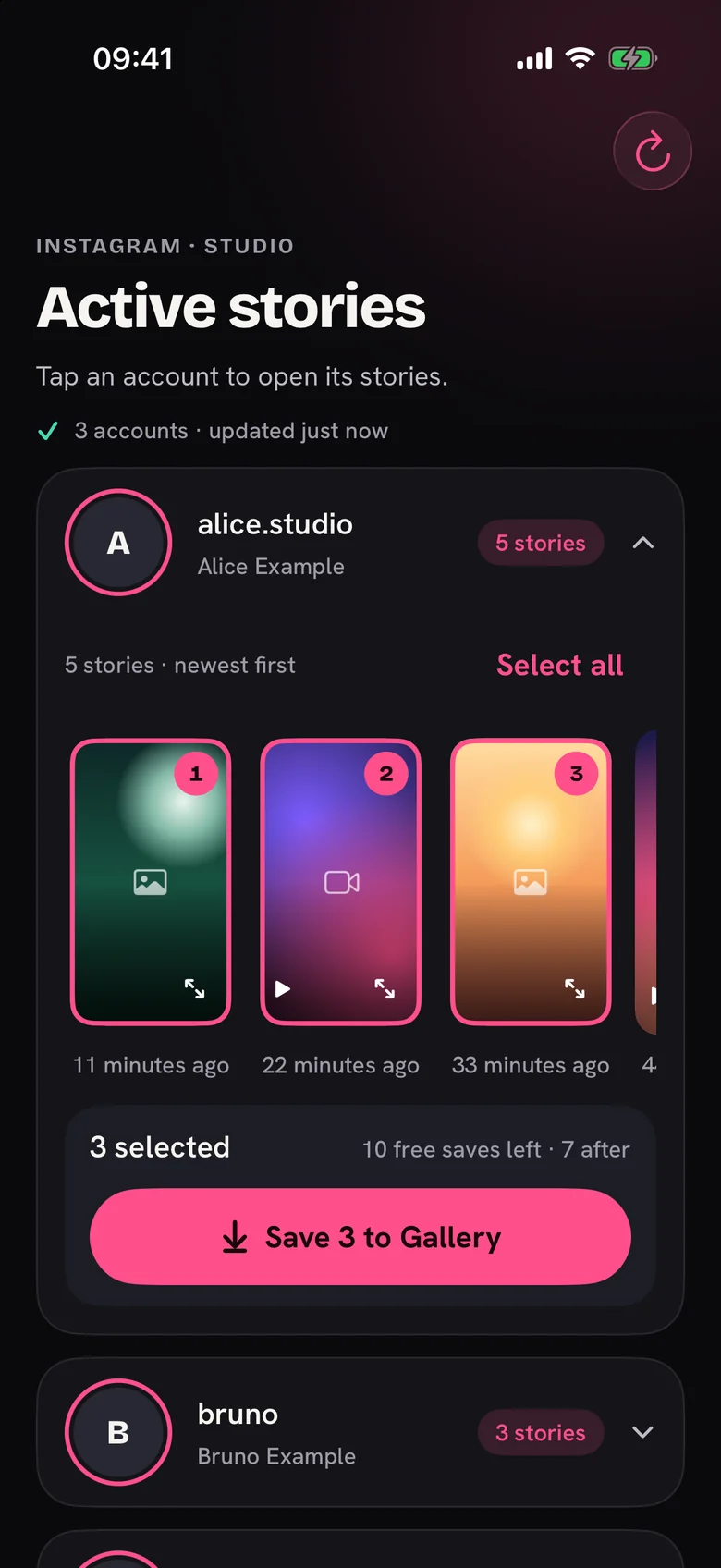
- Open Active stories for your Instagram account.
- Tap a username. The row opens and shows its stories, newest first.
- Tap the stories you want. A number shows the order you picked them in.
- Check the bar under the row. It shows how many you selected.
- Tap Save to Gallery.
Watch the progress
Each story shows its own ring. The bar shows the total. Keep StoryFetcher open until it finishes. A check mark appears on each story as it is saved.
Only finished saves count
If a save fails, it is not counted. You can try that story again.
If something goes wrong
- A story failed. Tap Try again, or Skip.
- Saving stopped. Tap Resume. Stories already saved stay saved.
- Some are already saved. The app asks if you want all of them or only the new ones.
Where the stories go
They go to Gallery. StoryFetcher can only add to Gallery. It cannot read your library. Saved stories show a marker in the app.