 StoryFetcher
In this article
StoryFetcher is not in the App Store. Some platform restrictions keep it out, so on iPhone you install it through AltStore PAL instead. AltStore PAL is an official alternative app marketplace. Apple allows it in the European Union, Japan and Brazil, and Apple checks every app in it before anyone can install it. StoryFetcher included.
You do this once, and it takes about five minutes. First you install AltStore PAL, then you add the StoryFetcher source, then you install the app. After that, updates come through AltStore PAL.
What you need
- An iPhone or iPad with iOS 18 or later. Check in Settings › General › Software Update.
- An Apple Account set to a country in the European Union, or to Japan or Brazil. Check in Settings › your name › Media & Purchases › View Account › Country/Region.
- The iPhone in that same region. Apple also checks where the device is.
- Safari, Chrome or Vivaldi. Other browsers cannot install a marketplace.
- An internet connection, with any VPN turned off while you install.
Outside these regions?
iOS does not allow alternative marketplaces in other countries, the UK and the US included, so these steps will not work there. On Android, get StoryFetcher on Google Play.
Step 1: Install AltStore PAL
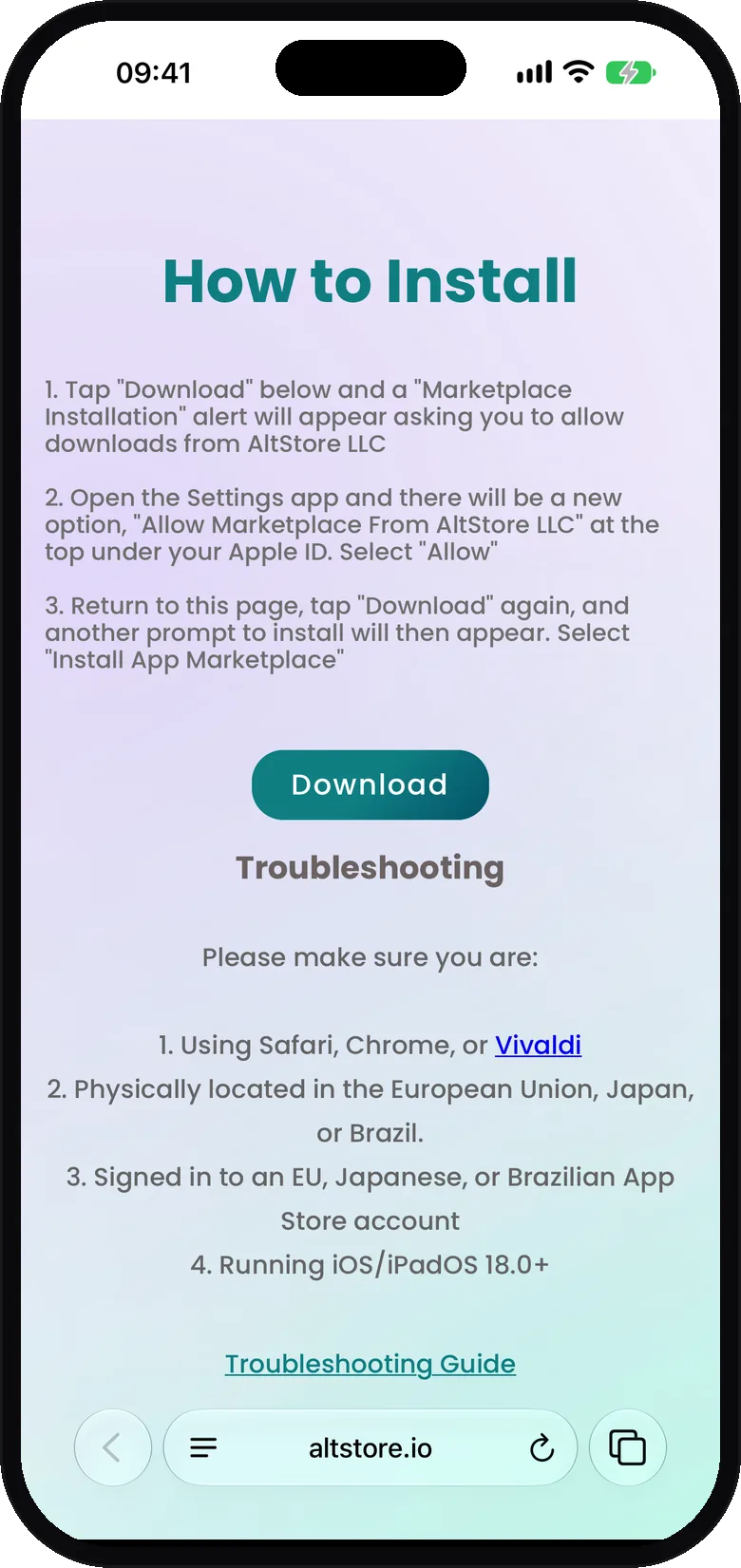
- On the iPhone, open altstore.io/download.
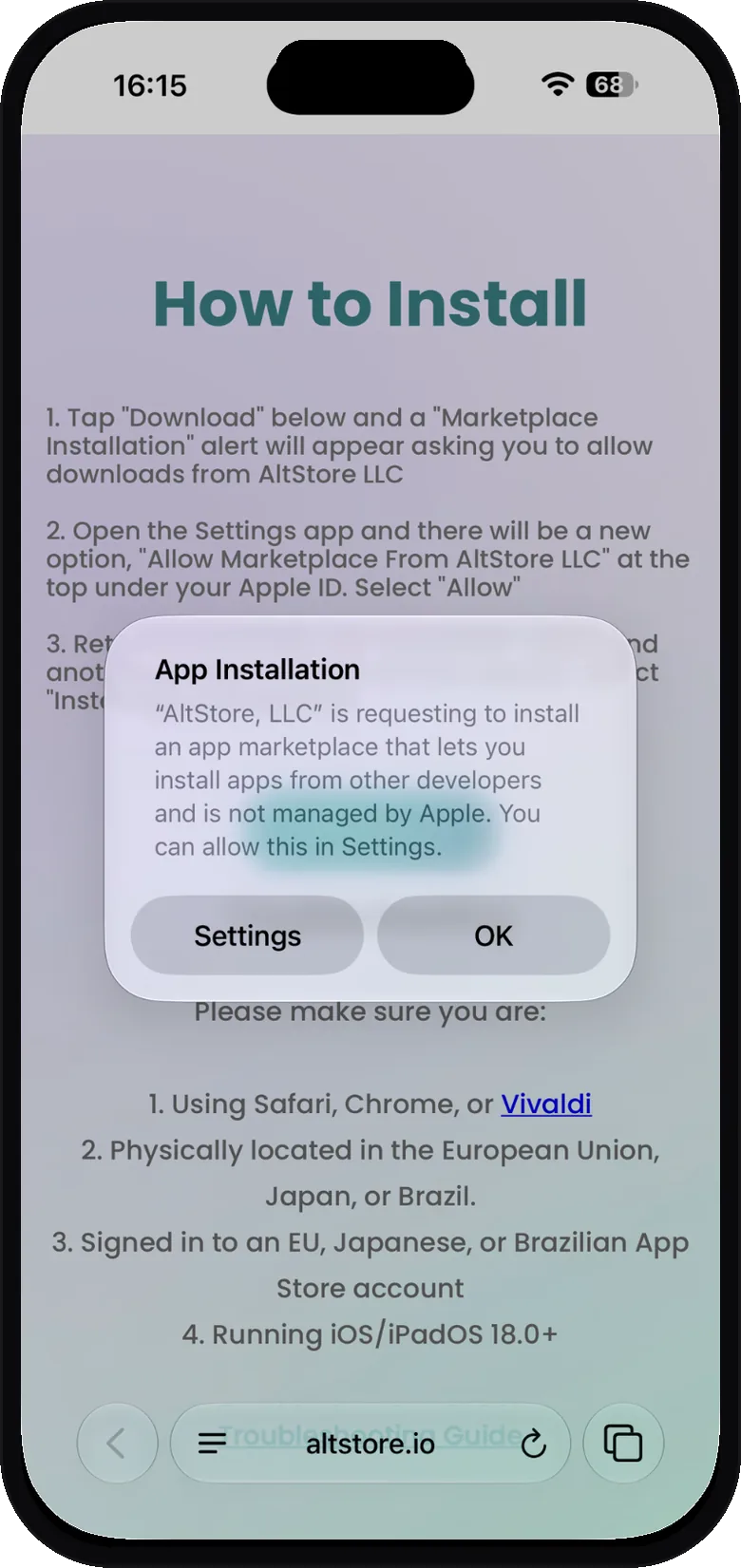
- Tap Download. An App Installation alert says that AltStore, LLC wants to install an app marketplace. Tap Settings.
- Settings opens with a new Manage App Installation row near the top. Tap it.
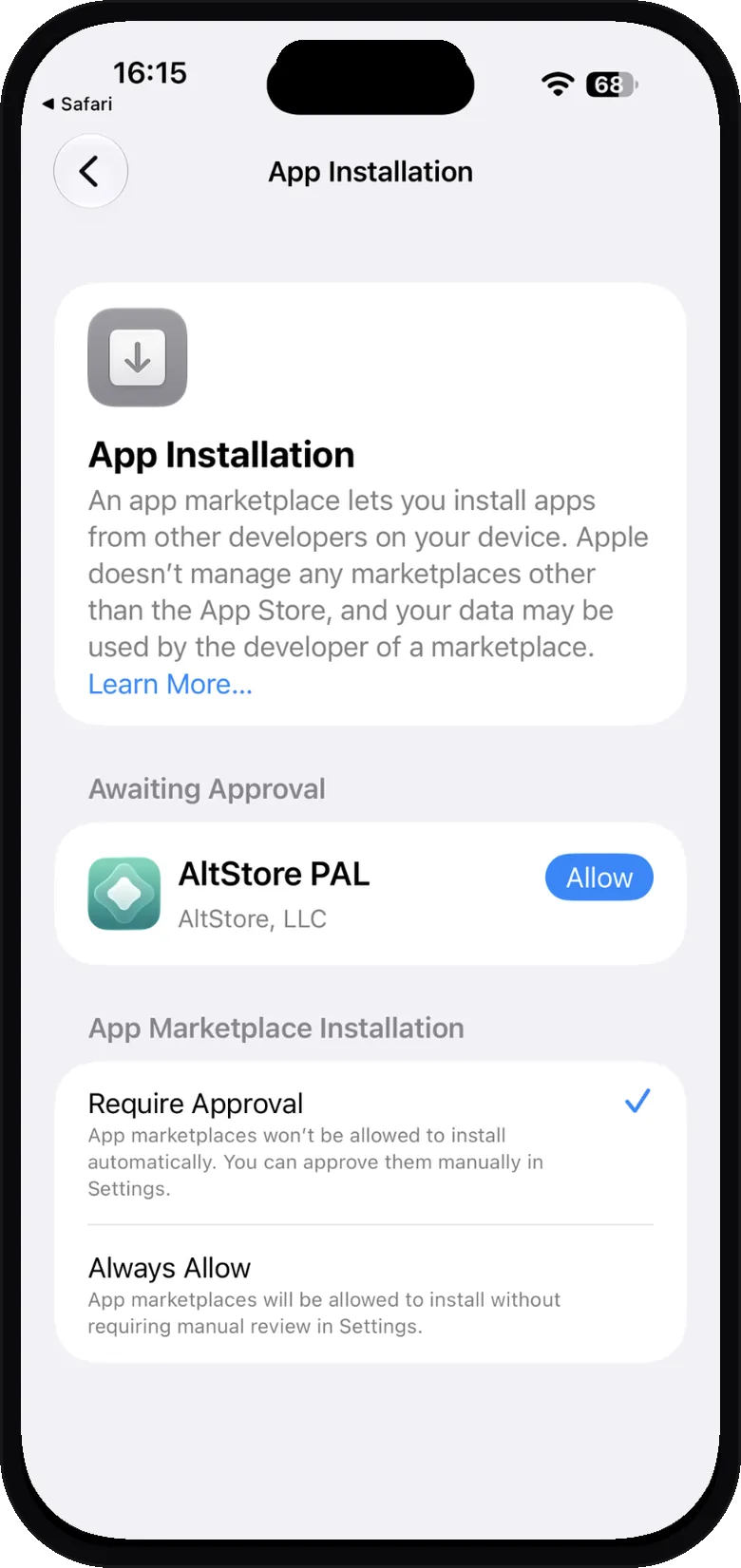
- Under Awaiting Approval, tap Allow next to AltStore PAL.
- A sheet asks you to allow AltStore, LLC to install an app marketplace. Tap Allow, and confirm with Face ID or your passcode if iOS asks.
- Wait for the AltStore icon to appear on your Home Screen.
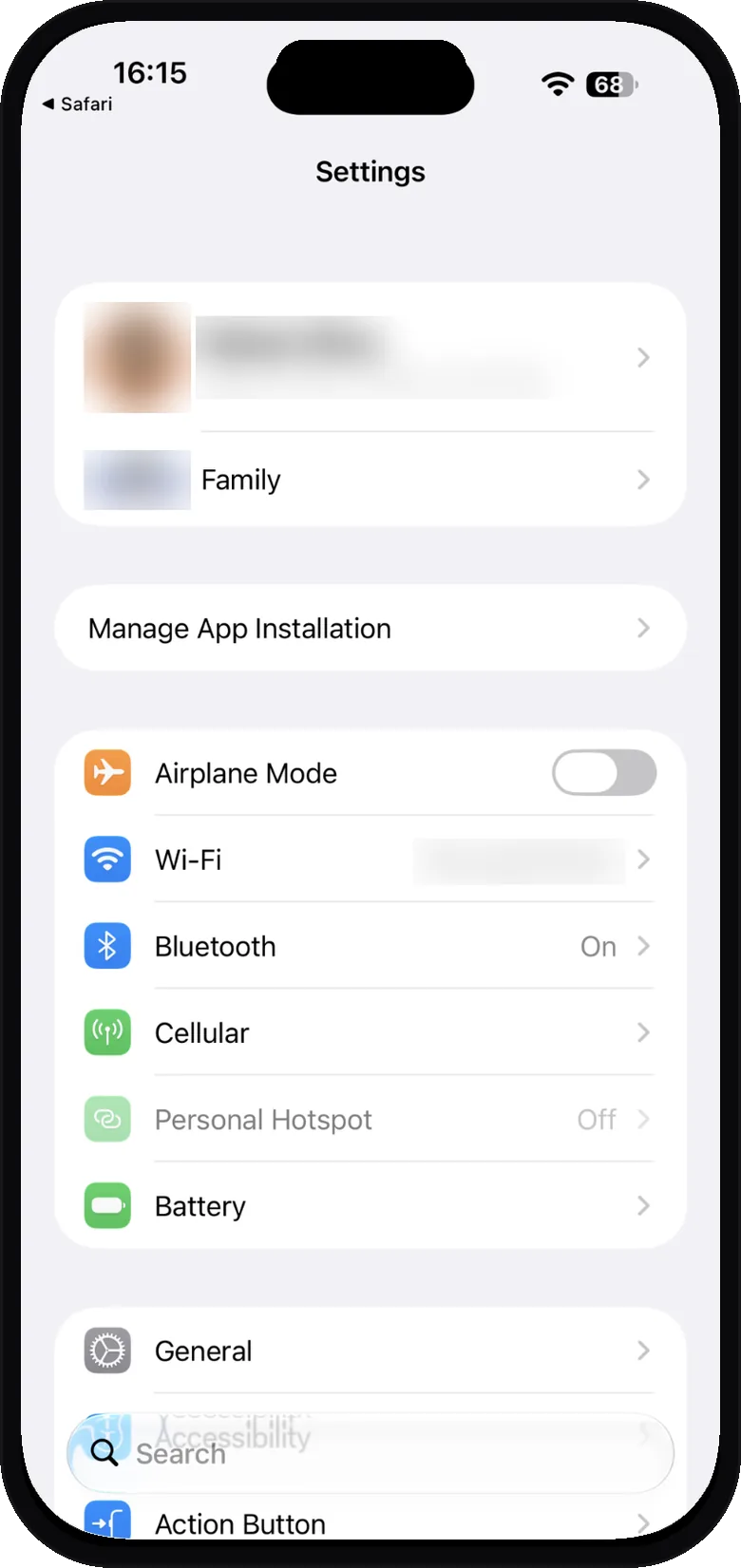
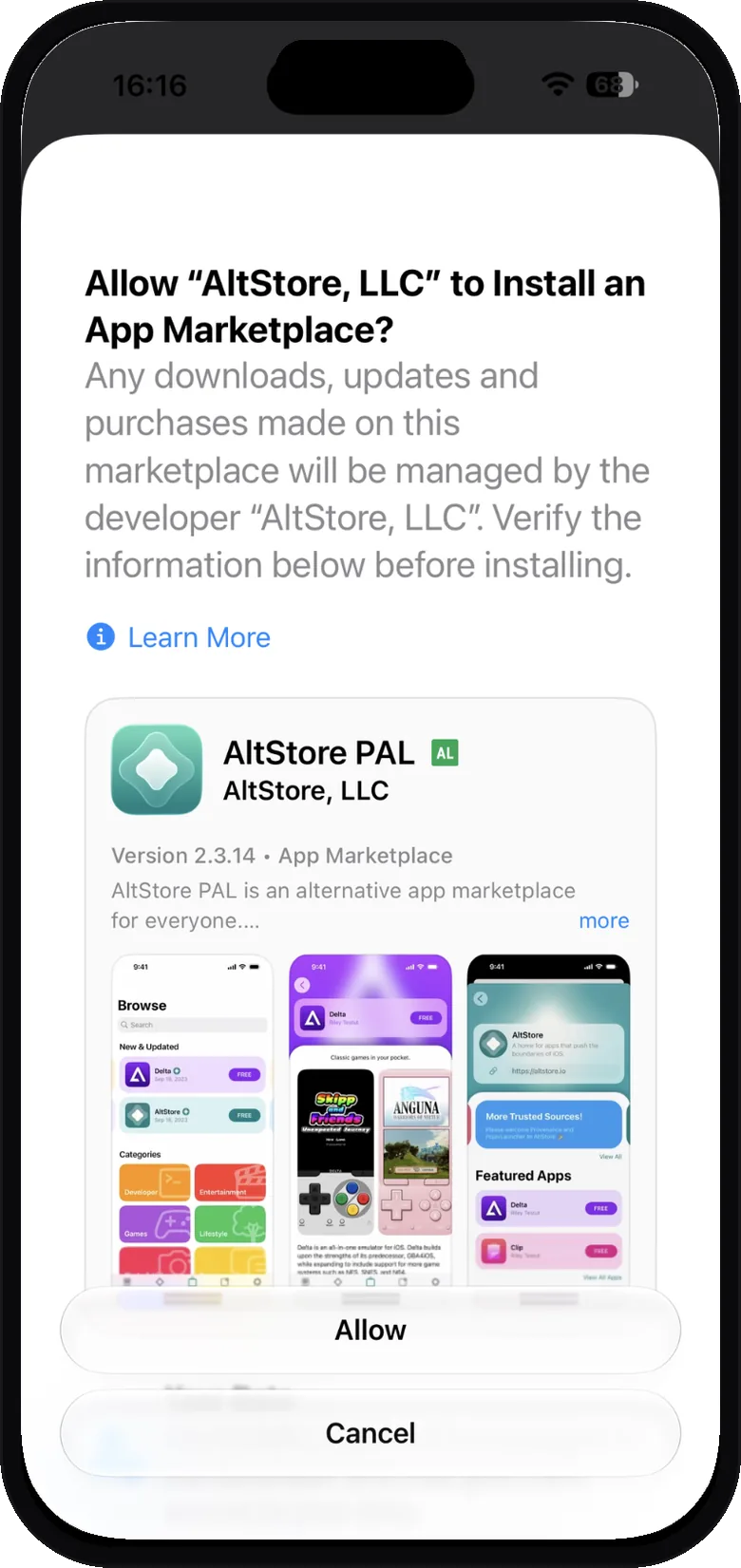
No Manage App Installation row in Settings? Restart the iPhone, then tap Download on the AltStore page again. AltStore recommends a restart when the option does not show up.
Step 2: Add the StoryFetcher source
A source is a link that tells AltStore PAL which apps to show. StoryFetcher has its own source on this site.
- Open AltStore. It may ask about notifications. Either answer is fine.
- Tap the Sources tab.
- Tap + at the top left.
- Type
storyfetcher.app/altstore.jsonin the address field. StoryFetcher appears below it. Tap its + button. - Tap Add Source to confirm.
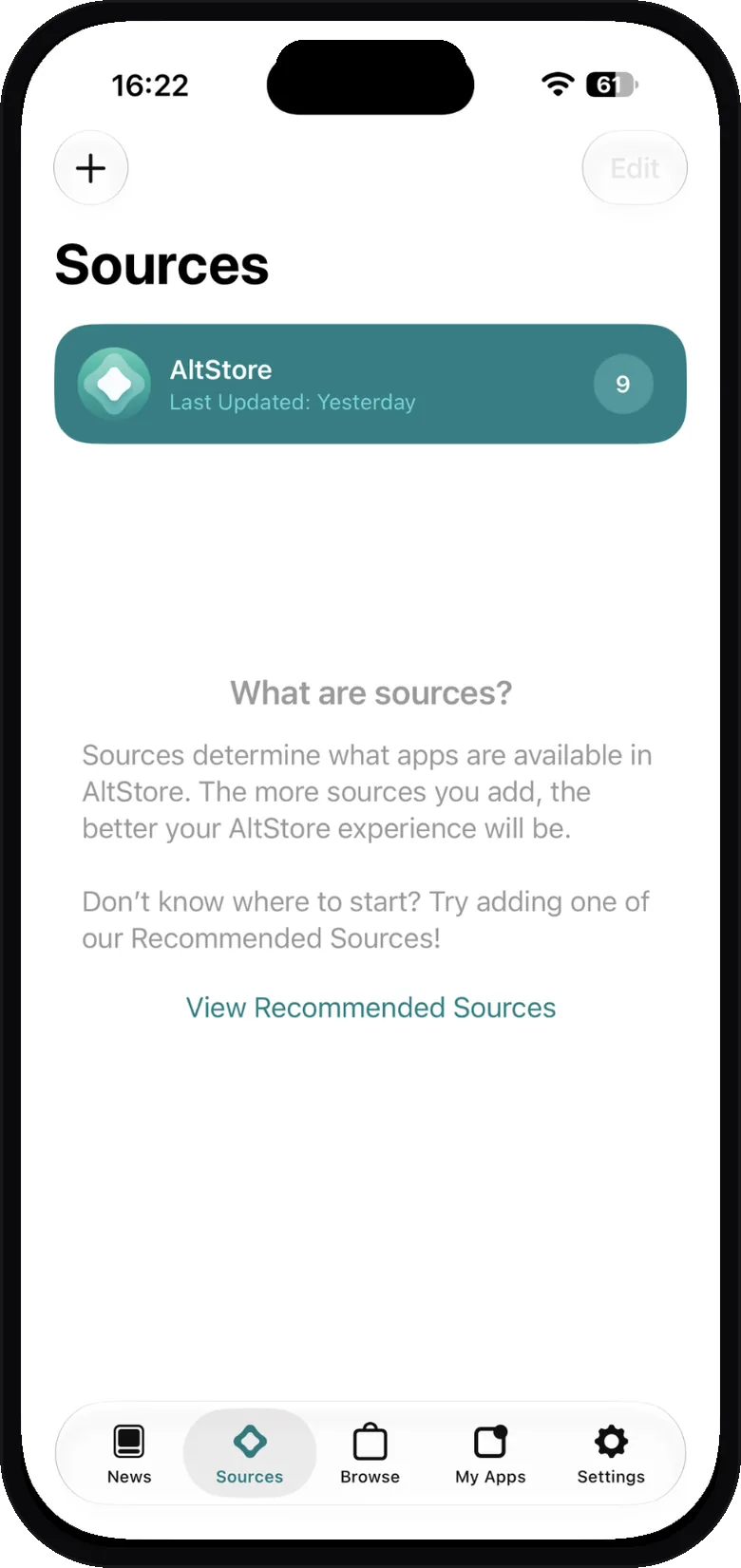
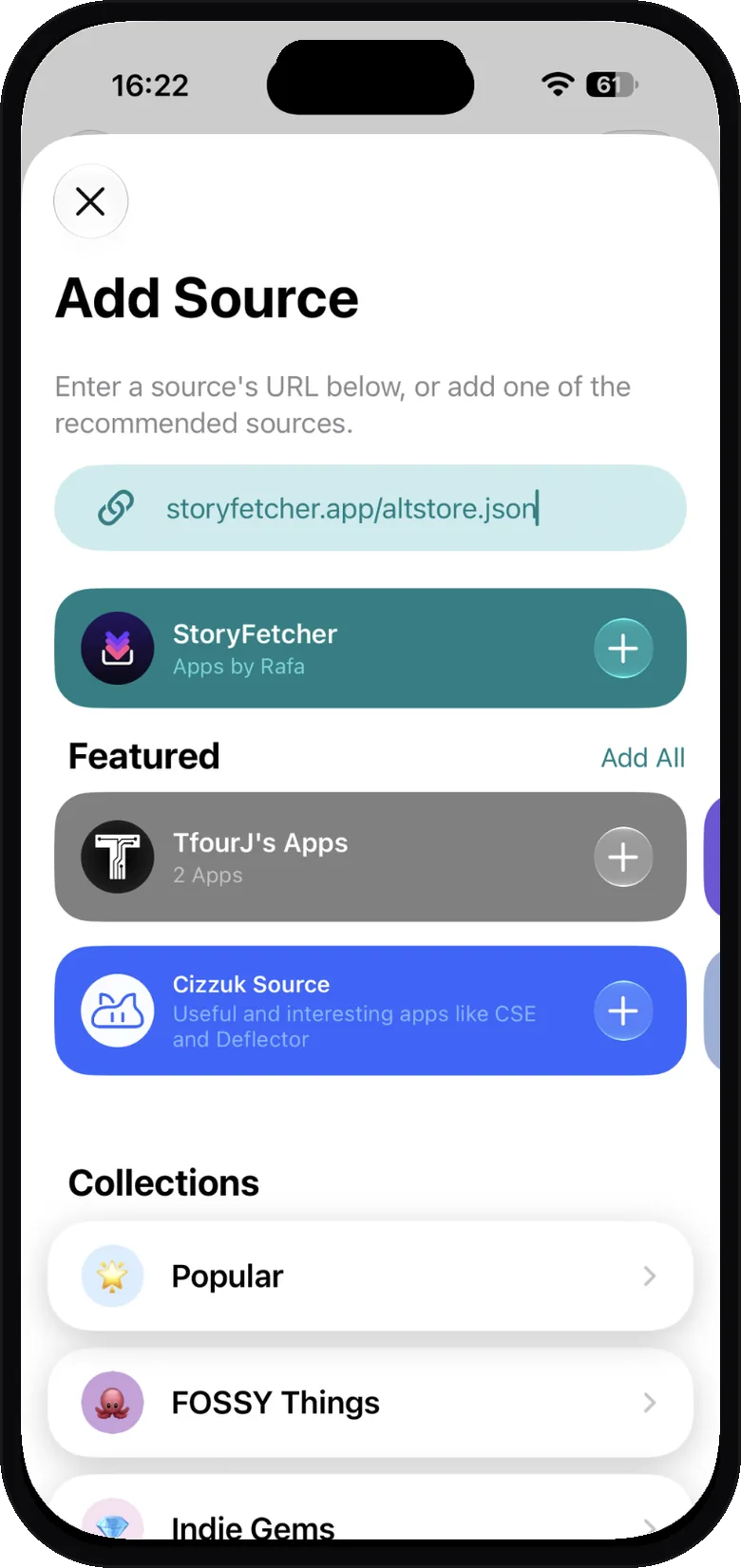
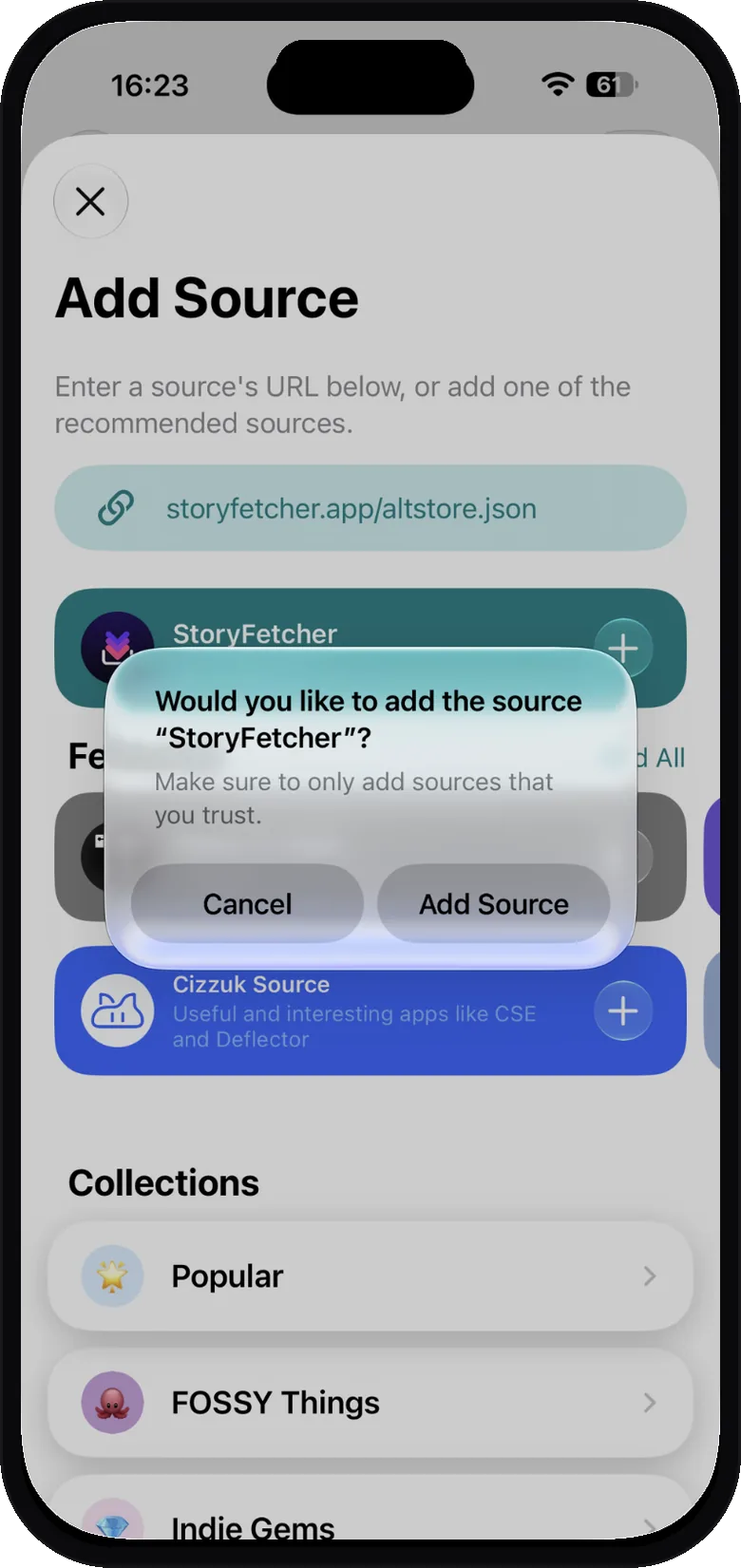
AltStore says the source is not supported by this version? Update AltStore PAL first. The StoryFetcher source needs AltStore PAL 2.2 or later.
Step 3: Install StoryFetcher
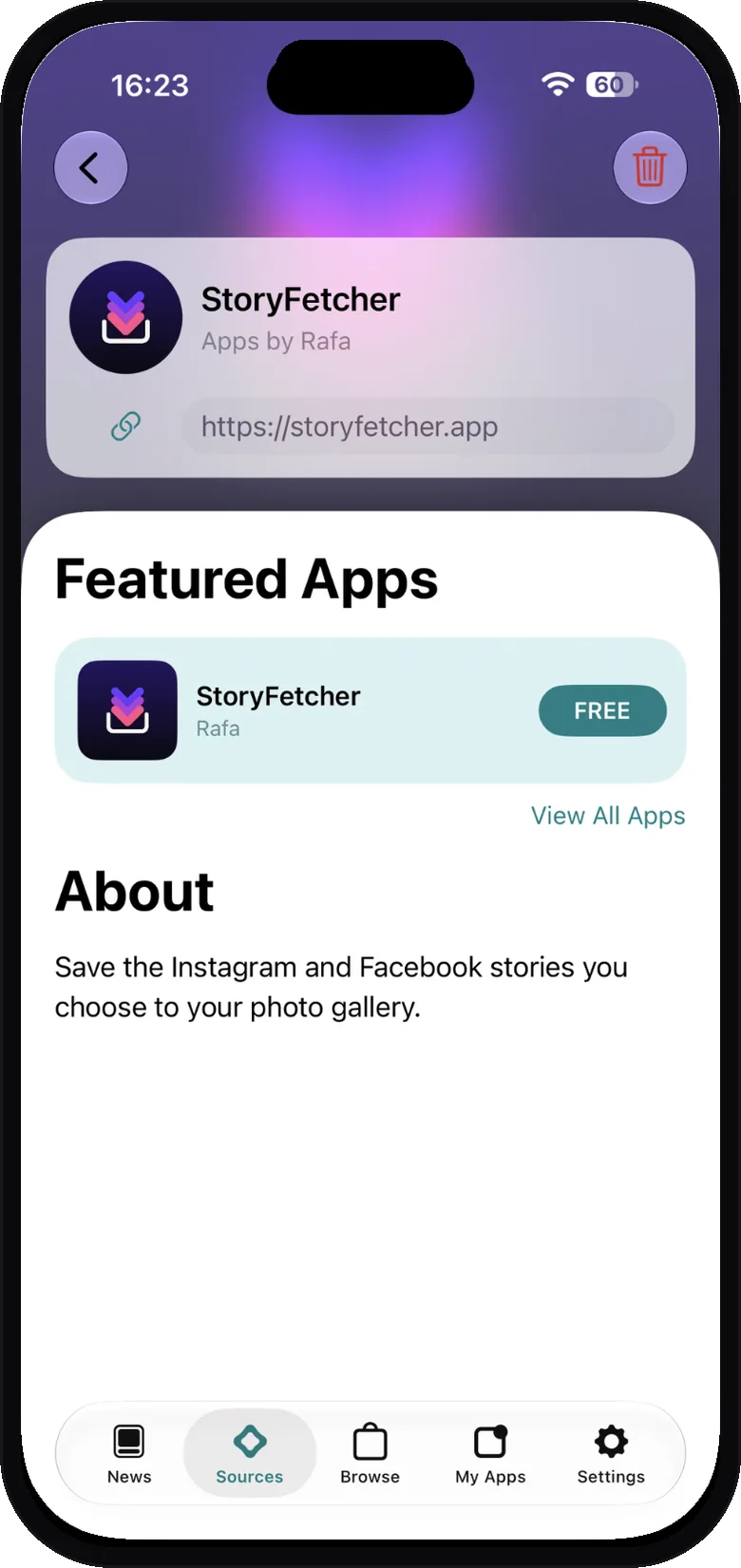
- In the Sources tab, tap StoryFetcher.
- Tap FREE next to StoryFetcher.
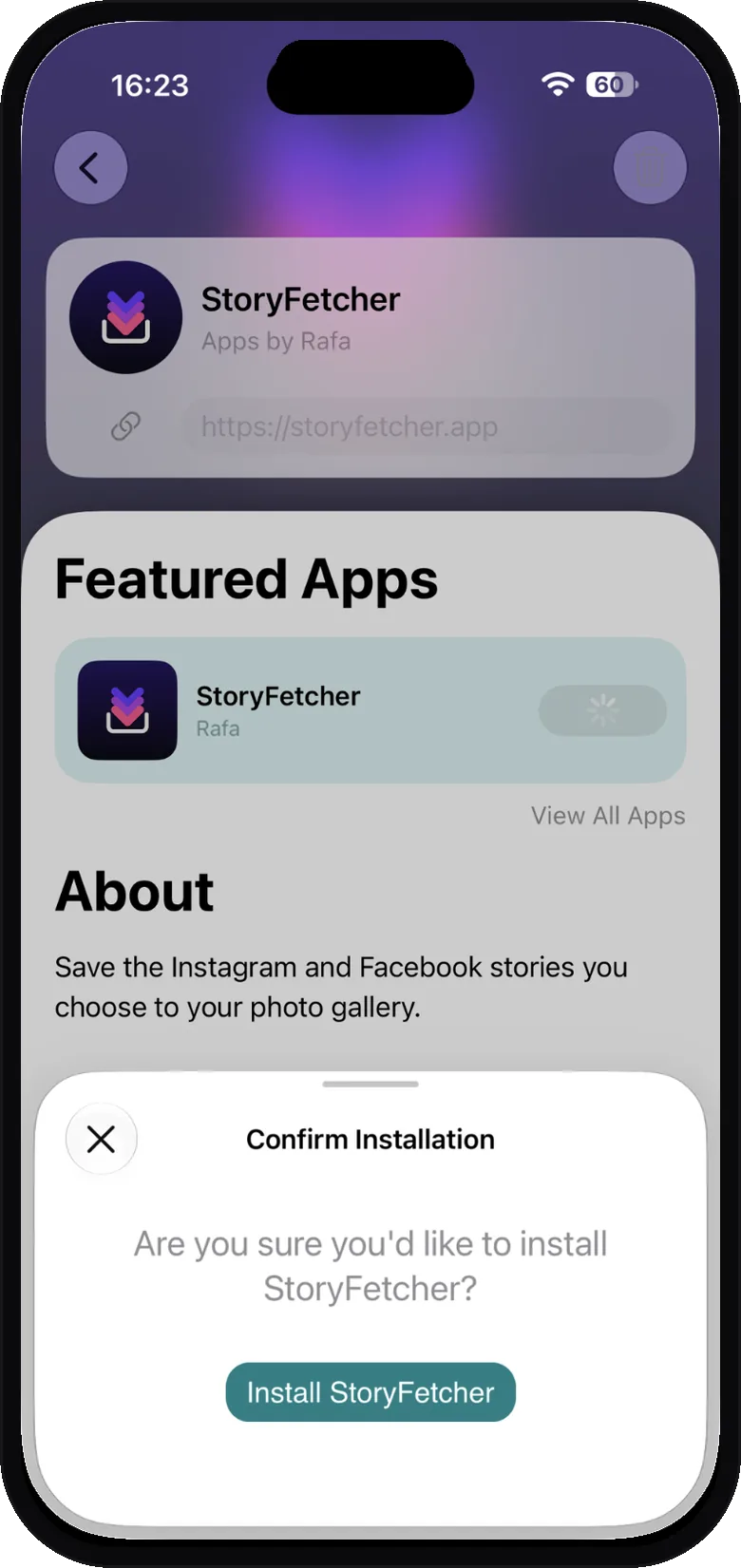
- Tap Install StoryFetcher.
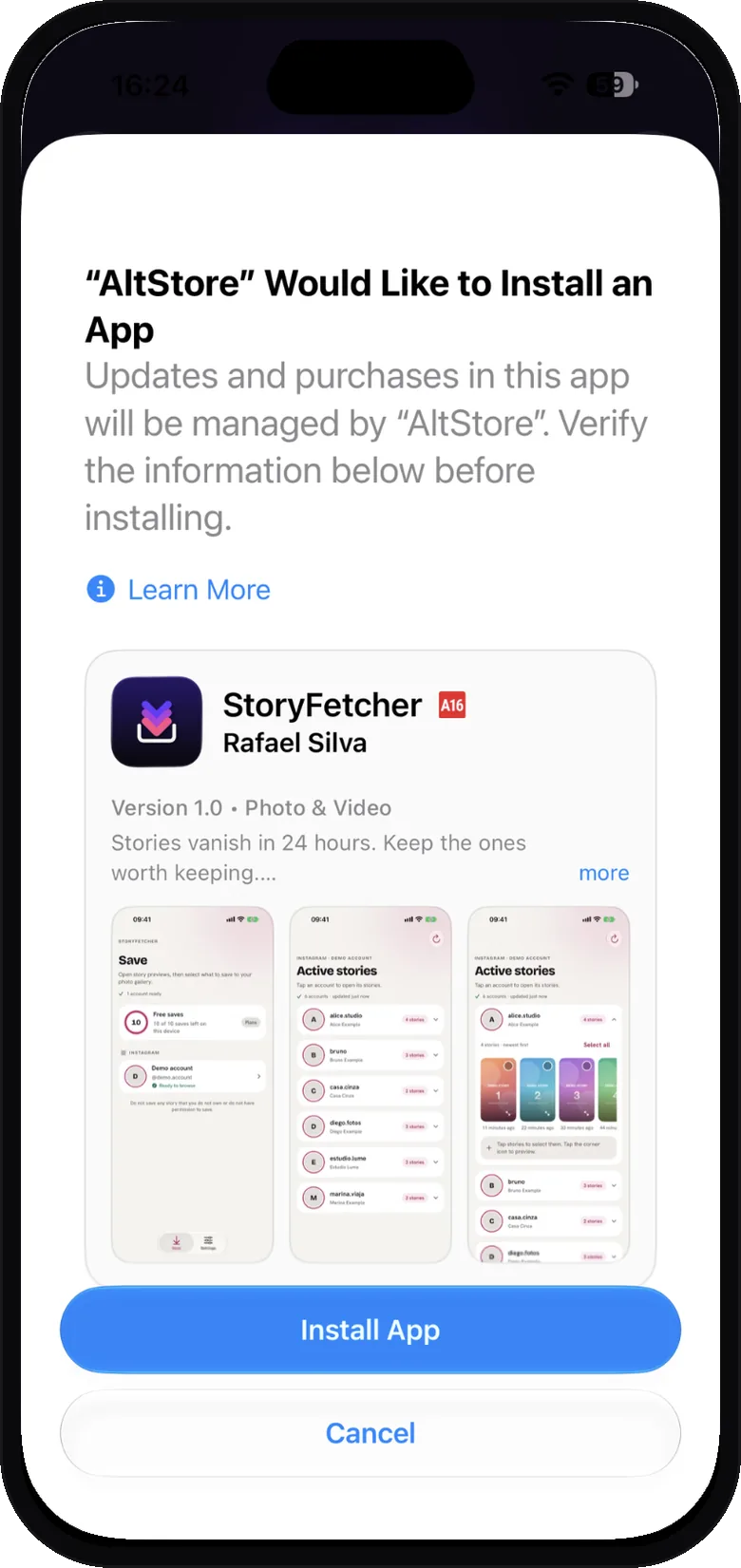
- iOS asks if AltStore can install the app. Tap Install App.
- Open StoryFetcher from your Home Screen.
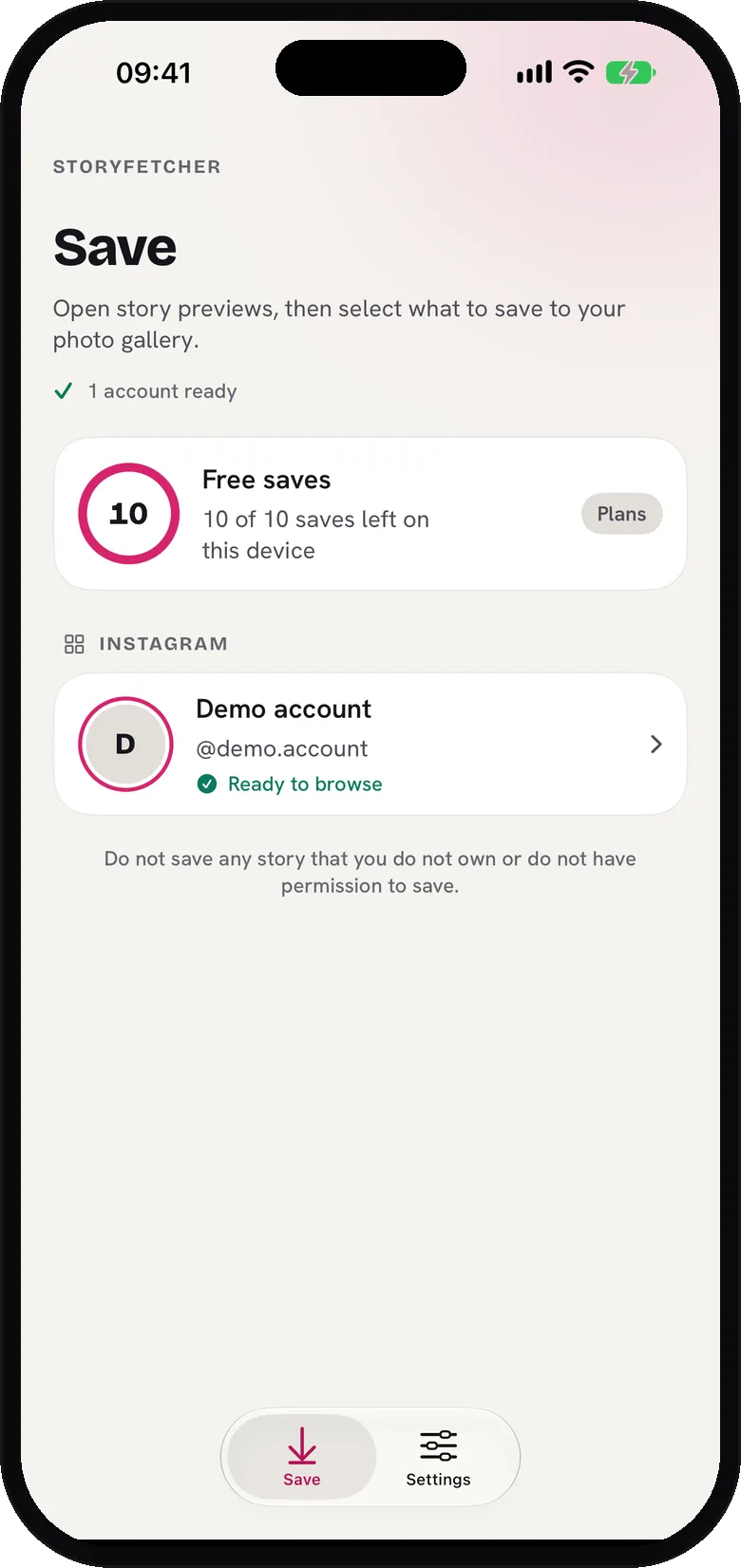
From here the app works the same way as on Android. Start with adding your first account.
Updates
When a new version of StoryFetcher comes out, AltStore PAL shows it. Open AltStore PAL and install the update from there. Your accounts stay signed in, and your saved stories stay in your photo gallery.
Questions people ask
Why is StoryFetcher not in the App Store?
Some platform restrictions keep it out of the App Store. AltStore PAL is an official way to install apps that Apple allows in the European Union, Japan and Brazil.
Is it safe to install apps from AltStore PAL?
AltStore PAL is an official alternative marketplace. Apple checks each app in it for security before anyone can install it, and StoryFetcher went through that check.
Does AltStore PAL cost money?
AltStore sets its own terms, and they can change. See altstore.io for the current details. StoryFetcher itself is free to install and comes with free saves.
Can I install it in the US, the UK or another country?
Not on iPhone for now. iOS allows alternative marketplaces only in the European Union, Japan and Brazil, and the UK is not included. On Android, StoryFetcher is on Google Play.
The download fails with an NSURLError. What now?
Turn off your VPN and try again. AltStore notes that a VPN can cause this error.
Do I need a computer?
No. Everything happens on the iPhone.
Keep reading
What is StoryFetcher? An app to save Instagram and Facebook stories
What the app does, who it is for, and what it does not do.
How to add an Instagram or Facebook account
Choose Instagram or Facebook, give it a label and continue to sign-in.
How to sign in to Instagram or Facebook safely in the app
Where the sign-in page opens and where your sign-in stays.